|
|
You can also chain together multiple queries (simple or AND/OR) involving different attributes by using the AND button. NOTE: These filters apply to any reports you later generate during the session.
BEFORE YOU BEGIN: Make sure you clicked the Filters icon on the Condition Map  and the AIMS Filters window is open. and the AIMS Filters window is open.
1.To define a complex query, follow the numbered instructions beneath the illustration.
_small.png)
|
_small-number-1.png)
|
Query Builder: Attribute, Operator, Value
|
|
Choose the attribute, operator, and value from the drop-down lists. In this example: Council District is not "6".
IMPORTANT! You must SELECT from the drop-down list; if you simply type the information, the field remains blank. To clear any selection you make, click the X on the right side of the selection.
|
|
_small-number-2.png)
|
AND or OR with Another Operator and Value
|
|
If necessary, select either AND or OR, and then specify another operator and value. For example: is not "3".
|
|
|
_small-control-2.png)
|
|
_small-number-3.png)
|
Add to the Query
|
|
•Click Add to add another attribute, operator, and value to the query.
|
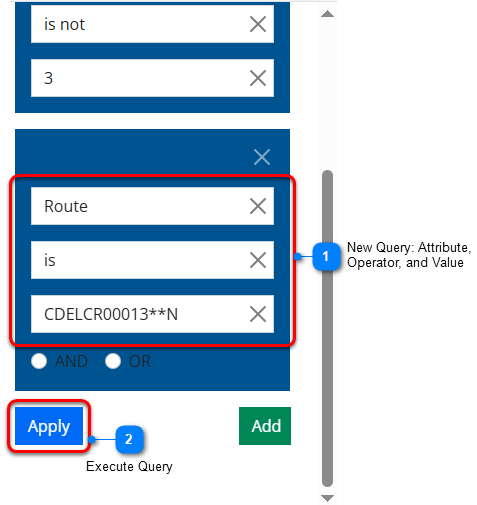
2. Once you click Add, another set of fields appears so you can enter information for an additional query.
|

|
New Query: Attribute, Operator, and Value
|
|
Enter another attribute, operator, and value. In this example: Route is "CDELCR00013**N".
NOTE: You can continue to Add as many additional queries as necessary.
|
|

|
Execute Query
|
|
When your complex query is complete, click Apply to execute the complex query and create a subset of features. This has already occurred in the illustration: Council District is not "6" and is not 3” AND “Route is "CDELCR000013**N".
NOTE: The filter is not saved. If you want to save the filter for future use, see: Save Attribute and Spatial Filters.
|
3.You may need to wait a moment for the filters to be applied. You should now see the results of the complex query as shown in the illustration below. The table beneath this illustration explains the numbered callouts.
_small.png)
|
_small-number-1.png)
|
All Selected Fields, Operators, and Values
|
|
Shows the field, operator, and value you previously selected from the drop down lists.
|
|
_small-number-2.png)
|
Displayed Query
|
|
This is the complex query you defined, displayed in a left to right format.
|
|
_small-number-3.png)
|
Feature Count
|
|
This is the number of features found that match your query.
NOTE: The feature count includes all features identified by any currently defined layer, attribute, and spatial filters.
|
|
_small-number-4.png)
|
Action Buttons
|
|
•Clear Attribute Filters - Removes all attribute filter expressions from the Attributes tab. See: Clear Filters.
•Save Attribute and Spatial Filters - Activates the Saved tab and allows you to save the current attribute filter shown on the Attributes tab, along with the current spatial filter (if any), for future use. See: Save Attribute and Spatial Filters.
•Done - Returns you to the Condition Map with the filter applied. (You may also click the X in the upper right corner of the window.)
|
Related topics:
Define a Simple Query
Define an AND / OR Query
|
|

