|
|
You can chain together simple queries using the same attribute by using AND and OR operators. NOTE: These filters apply to any reports you later generate during the session.
BEFORE YOU BEGIN: Make sure you clicked the Filters icon on the Condition Map  and the AIMS Filters window is open. and the AIMS Filters window is open.
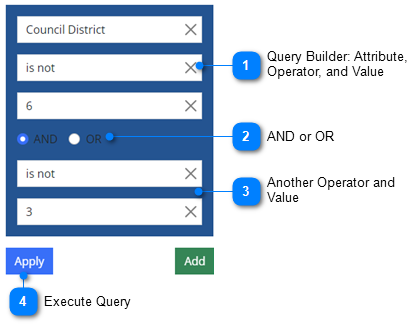
1.To define an AND/OR query, follow the numbered instructions beneath the illustration.
|

|
Query Builder: Attribute, Operator, and Value
|
|
Choose the attribute, operator, and value from the drop-down lists.
IMPORTANT! You must SELECT from the drop-down list; if you simply type the information, the field remains blank. To clear any selection you make, click the X on the right side of the selection.
|
|

|
AND or OR
|
|
Select either AND or OR.
|
|

|
Another Operator and Value
|
|
Finally, enter another operator and a value. For example: "Council District is not 6 AND is not 3").
•The AND operator displays a record if all the conditions separated by AND are true.
•The OR operator displays a record if any of the conditions separated by OR is true.
|
|

|
Execute Query
|
|
Click Apply to execute the AND/OR query. You may need to wait a moment for the filters to be applied.
|
2.After clicking Apply, you should now see the results of the AND/OR query as shown in the illustration below. The table beneath the illustration explains the numbered callouts.
.png)
|
-number-1.png)
|
Green Bar
|
|
A green bar appears underneath the Attributes tab, indicating that an attribute filter is set.
|
|
-number-2.png)
|
Attribute, Operator, Value, with AND/OR
|
|
These are the attribute, value, and operator you selected, along with AND or OR, and another operator and value.
|
|
-number-3.png)
|
Displayed AND/OR Query
|
|
This is the AND/OR query you defined, displayed in a left to right format.
|
|
-number-4.png)
|
Feature Count
|
|
This is the number of features found that match your query.
NOTE: The feature count includes all features identified by any currently defined layer, attribute, and spatial filters.
|
|
-number-5.png)
|
Action Buttons
|
|
•Clear Attribute Filters - Removes all attribute filter expressions from the Attributes tab. See: Clear Attribute Filters.
•Save Attribute and Spatial Filters - Activates the Saved tab and allows you to save the current attribute filter shown on the Attributes tab, along with the current spatial filter (if any), for future use. See: Save Attribute and Spatial Filters.
•Done - Returns you to the Condition Map with the filter applied. (You may also click the X in the upper right corner of the window.)
|
Related topics:
Define a Simple Query
Define a Complex Query
|
|

