Attribute filters can also be applied within the Condition Map to restrict the number of features displayed on the map and in reports. NOTE: These filters apply to any reports you later generate during the session.
1.Click the Filter by Attributes icon.
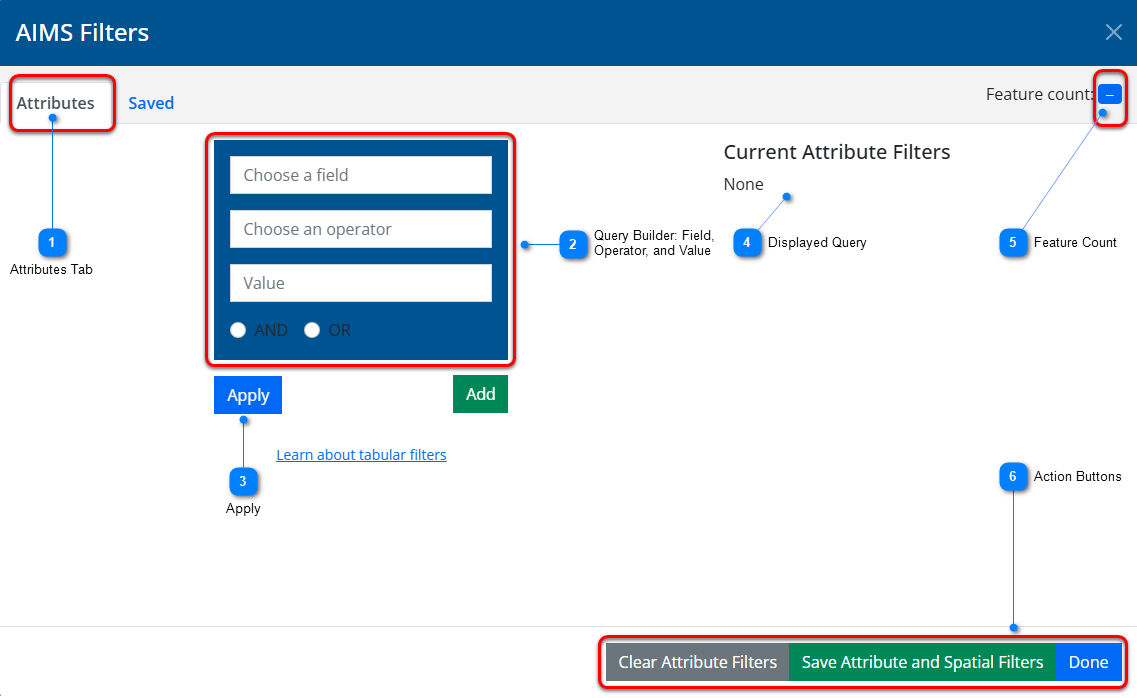
2.The AIMS Filters window opens. The table beneath the illustration explains the numbered callouts.
Attributes Tab
This tab is selected by default when you open the AIMS Filters window.
Query Builder: Field, Operator, and Value
You must build a query by filling in these fields. You do so by selecting something from each drop-down list. NOTE: Even if you type something, you must still select from the drop-down list; otherwise the field remains blank.
•Simple Query: Enter a field, operator, and value. For details on creating a simple query, see: Define a Simple Query.
•AND/OR Query: Enter simple query. Then select AND or OR, and specify another operator and value for the same attribute. For details on creating an AND/OR query, see: Define an AND/OR Query.
•Complex Query: Enter an AND/OR Query. Then press the AND button and specify another AND/OR Query. Continue in this fashion. For details on defining a complex query, see: Define a Complex Query.
Apply
Apply the current filter to limit the data in the selected dataset
Displayed Query
Display the query you specified in your attribute filter (currently it is "None" because no attribute filter has been defined).
Feature Count
This is how many features match the criteria in your attribute filter and spatial filter(at present there are no features selected because no filter has been defined).


.png)