|
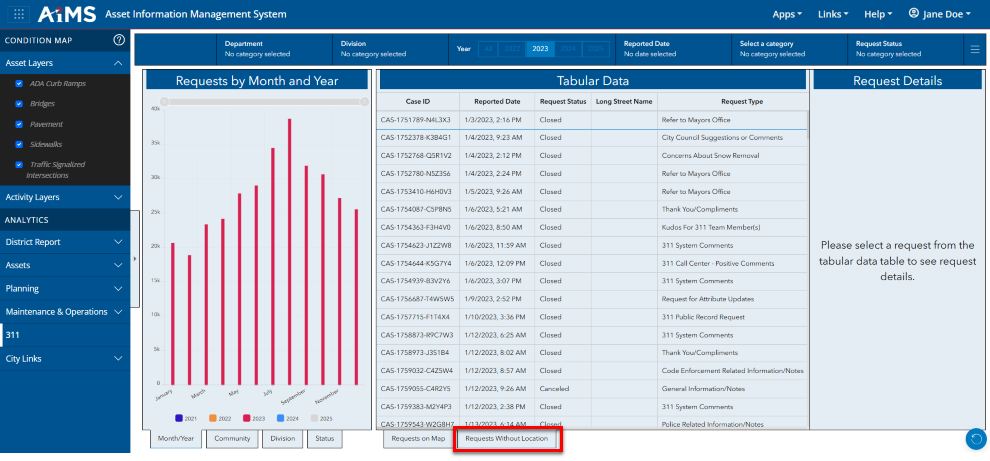
There are two data tabs at the bottom of the 311 Requests Dashboard: Requests on Map and Requests without Location.
•Requests on Map displays data in the map view and in the Map Data table.
•Requests Without Location displays tabular data in the Map Data table only.
A. Requests on Map -- In Visual Form and Tabular Form
1.When you select the Requests on Map tab, you are viewing only the data that is visible on the map.
•The data appears visually on the map as well as tabularly in the Map Data table.
•You also see Request Counts and Request Details (details are empty until you select a record from the table).
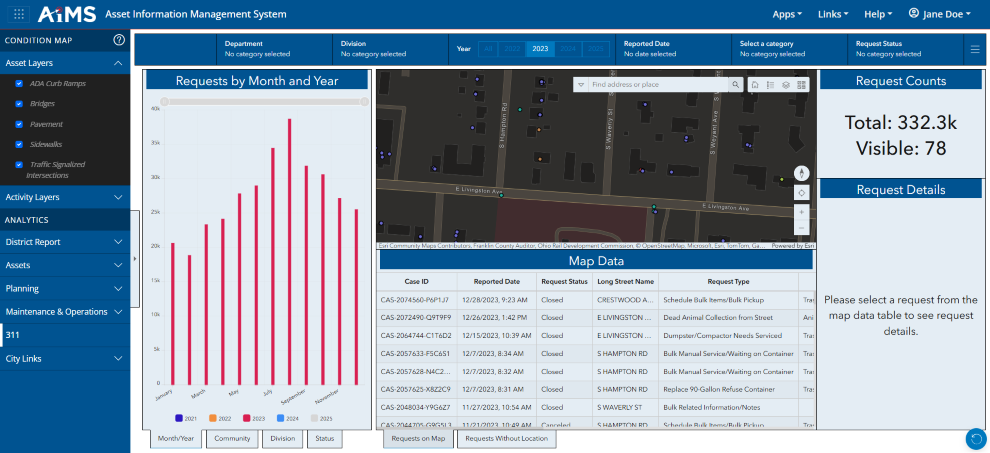
2.Once you select a record in the Map Data table, the map zooms into that asset. Follow the numbered instructions beneath the illustration to view request details from the Map Data table.
.png)
|

|
Bar Chart
|
|
You can click any bar in the chart to filter the rest of the data you see in the Dashboard. For example, you might want to filter by the month of July. NOTE: In the illustration, no filtering occurred using the bar chart.
|
|

|
Selected Record
|
|
You can select a particular record in the Map Data table to filter the rest of the data you see in the Dashboard. In the illustration, the record a Case ID of CAS-1652005-T2M9KB is selected. Notice how the map zoom into the selected record and how the other records shown in the table may change. This occurs because the Map Data table will only display records shown in the current extent of the map.
|
|

|
Request Details Table
|
|
The request details for the selected record populate the Request Details table.
|
|

|
Request Details Link
|
|
You may click the Request Details link to view the 311 Dashboard filtered to only show that request. NOTE: The link is shareable.
|
|

|
Selected Location in Zoomed Map
|
|
Watch as the map zooms to your selected record. A magenta circle flashes on the map to show the location of the feature. NOTE: The magenta circle disappears after flashing.
|
B. Requests Without Location - In Tabular Form Only
1.When you select the Requests Without Location tab, you are viewing only data that cannot appear on the map because there are no location.
•The data only appears tabularly in the Map Data table; there is no visual map.
•You also see the Request Details table (details are empty until you select a record from the table).
|

