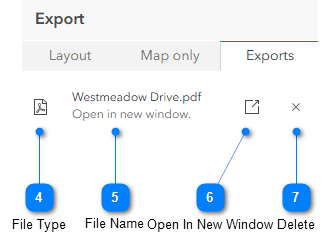
The Exports option displays a list of maps that have been exported so you can download them. NOTE: This list only exists for the duration of your session.
Follow the numbered instructions beneath each illustration to export the map image only.
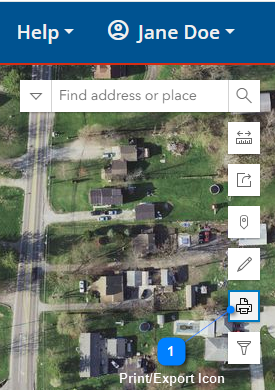
Print/Export Icon
Click the Print/Export icon to view the Export dialog and select the Exports tab.
Exports Tab
The Map only tab lets you specify the format for the map you are exporting.
Exported Files
Initially, there are no exported files. Once you have exported some files, they appear in the tab. NOTE: The list exists only for the duration of your session. Make sure to download and save any exported file listed.
File Type
The icon reflects the file type; in this example it is a PDF file.
File Name
Name of the exported file. In this example it is Meadowrun Drive.pdf.
Open In New Window
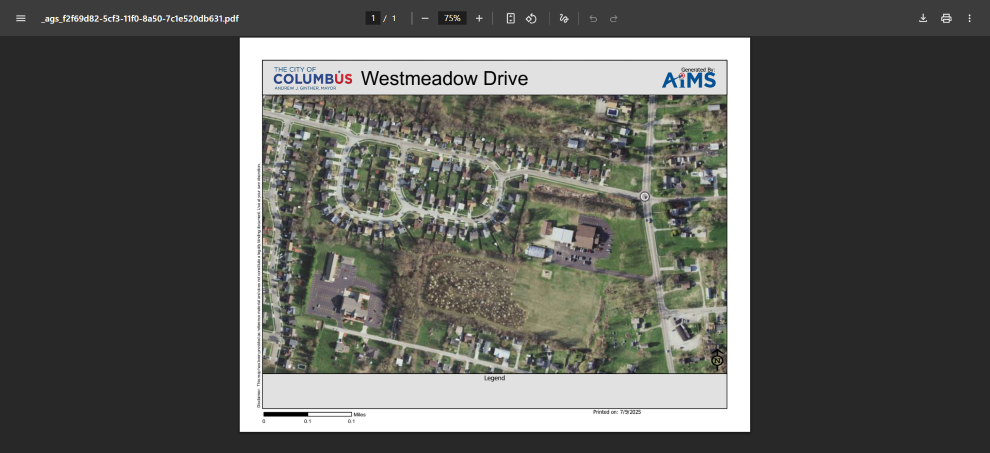
Displays the exported file in another window or browser tab. You can now download and save it. The file looks something like this:
Delete
Click the "X" to remove the exported file from the list.



.png)