Both groups and layers have a visibility setting that allow them to become visible or invisible.
Follow these instructions:
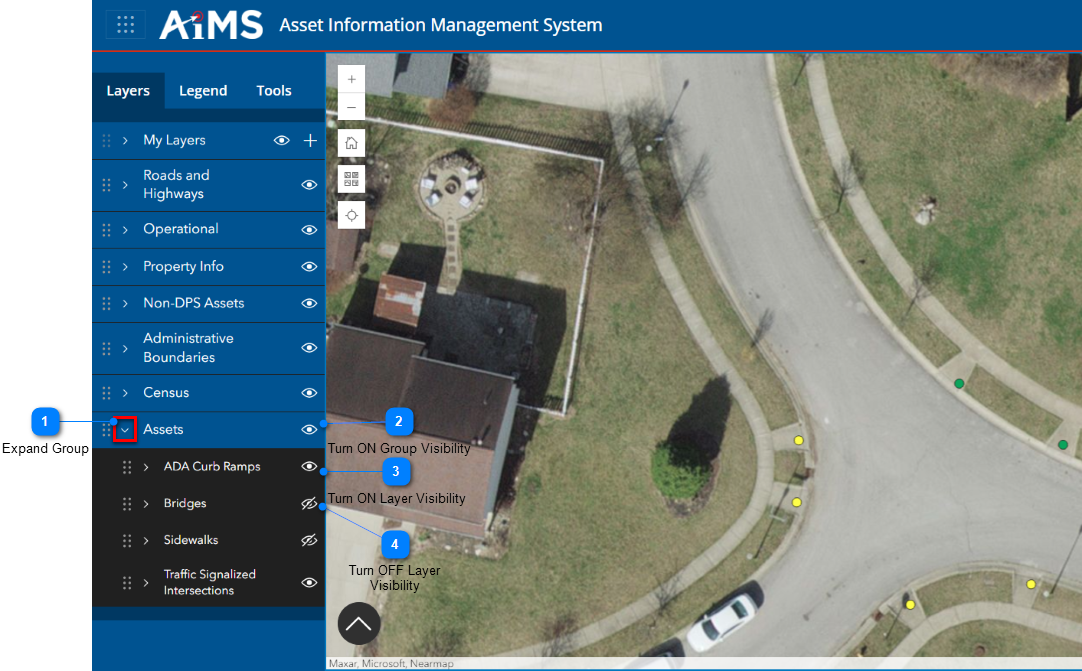
Expand Group
Expand a group by clicking the arrow next to the group's name.
Turn ON Group Visibility
Turn ON group visibility by toggling the visibility icon to . In this example, the Assets group is visible.
•When you turn ON visibility at the group level , you turn on visibility of all layers within that group that were individually marked as visible . Those layers now appear on the map. NOTE: Turning ON group visibility has no impact on individual layers that were already marked as invisible.
•When you turn OFF visibility at the group level, you turn off visibility of all the layers, regardless of whether the layers were individually marked as visible. All layers within the group are no longer visible on the map.
Turn ON Layer Visibility
Turn ON layer visibility by toggling the visibility icon to . In this example, the ADA Curb Ramps layer is visible.
•When you turn OFF visibility for a layer , it will not appear on the map, even through its group is visible .




.png)

.png)
