|
The order of the groups and the layers within them is important because it affects how layers are displayed on the map.
1.The AIMS application always draws the visible layers only, starting with the layers within the the bottom group.
2.Within the bottom group, the AIMS application draws the layers, starting with the bottom layer and moving upward.
3.Then the AIMS application moves to the group above, and draws its layers, starting from the bottom layer and moving upward.
4.The AIMS application continues moving upward from group to group, and layer to layer, until eventually, the top layer of the top group is drawn on top of all the other visible layers.
Reordering the groups and layers is important when you want to display certain layers on top of others. Below you will learn how to reorder groups and layers
A. Reorder Groups
Follow the numbered instructions beneath the illustration to reorder (move) the groups. _small.png)
|

|
Select Group
|
|
Select the six-dot "handle" to the left of a Group and hold down the left mouse button.
NOTE: The My Layers group CANNOT be moved. Layers cannot be moved into or out of the My Layers group.
|
|

|
Drag Group
|
|
Drag the Group to a new location.
|
|

|
Release Mouse
|
|
Release the mouse button to place the Group at the new location.
|
B. Reorder Layers
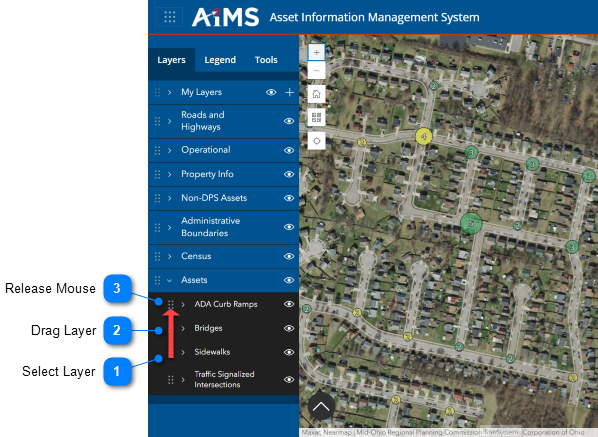
Follow the numbered instructions beneath the illustration to reorder (move) individual layers.
|
.png)
|
Select Layer
|
|
Select the six-dot "handle" to the left of a Layer and hold down the left mouse button. In the illustration, the Sidewalks layer is selected.
|
|
.png)
|
Drag Layer
|
|
Drag the Layer to a new location.
|
|
.png)
|
Release Mouse
|
|
Release the mouse button to place the Layer at the new location. In the illustration, the new location is the current location of the ADA Curb Ramps layer.
|
|

