The Poor Condition List Reports offer a straightforward way to filter asset data based on conditions. By applying filters, you can narrow down the focus to specific criteria for individual assets.
BEFORE YOU BEGIN: Make sure you expanded the Assets group and then selected the Poor Condition List Report.
The table below the illustration explains the numbered callouts in the Poor Condition List.
Condition Filters
Apply condition filters by selecting desired condition ratings (Excellent, Good, Fair, Poor, Very Poor) for each asset type. By default, these filters select Pavement and Bridges with poor or very poor condition.
Asset Condition Summary Table
This table displays asset condition data grouped by individual streets that the assets are located on. This table is filtered by the condition filters on the left side of the report. To filter the report using this table, click any row, column, or cell in the table. The report will be filtered by the street name or asset type selected.
View Selected Assets on Map
•Select one or more records (assets) from the Asset Condition Details table. NOTE: To select multiple records, hold down the Ctrl key while you left-click various records.
•Click the View Selected Assets on Map icon.
•Another tab opens showing a map with a pop-up dialog on top, indicating the number of features that will be displayed, based on the report specifications. NOTE: An error message appears if no visual data is available; you will not see a map.
•Close the dialog box to see the map. You may have to zoom in to see the selected features. NOTE: The map is limited to showing up to 10,000 of the selected records.
Selected Street
You must select a street from the Asset Condition Summary table to populate the Asset Condition Detail table. In the example, E. Livingston Ave. was selected.
Asset Condition Detail Table for Selected Street
This table only appears once you select a street from the Asset Condition Summary table. In the illustration, E. Livingston Ave. was selected. All of the individual assets that are on the selected street and satisfy the condition filters are displayed in this table.
•To view assets from the Asset Condition Detail table in more detail, right-click the desired row and select Drill through > Explore Asset Details.
WARNING! Do NOT left-click the row in the Asset Condition Detail table; doing so will clear the entire table!
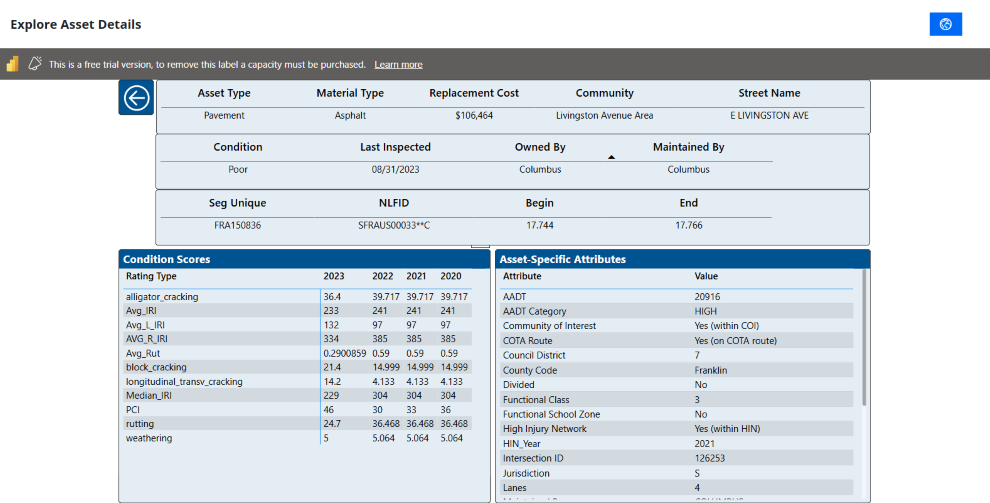
•This opens a new Explore Asset Condition Detail page with detailed information about the attributes of the chosen asset.
•The following illustration shows what happens when you right-click a row of the Asset Condition Detail table with the Seg Unique value of FRA150836 for E. Livingston Ave. in the Livingston Avenue Area. NOTE: Click the large back-arrow icon in the upper-left corner of the Explore Asset Condition Detail page to return to the full report.


.png)