|
In the Map Viewer, use the icons on the left side of the map and the Search field for navigation purposes.
The numbered items beneath the illustration explain the numbered callouts.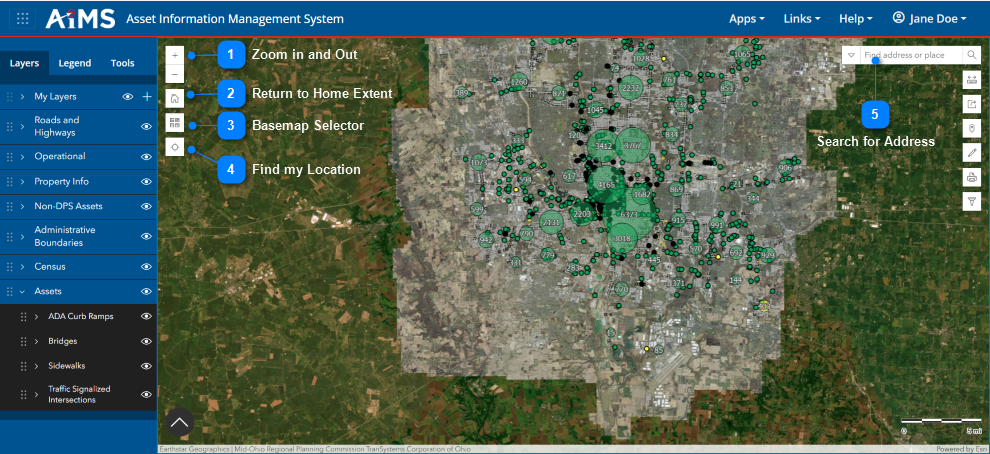
|

|
Zoom in and Out
|
|
Click the + and - icons to zoom in and out of the condition map. You may also zoom by rotating the scroll wheel of your mouse or by pinching and spreading your fingers on a touchpad.
Learn more below: Zoom In and Out
|
|

|
Return to Home Extent
|
|
Click this button to return to the default extent of the map viewer, showing all of the city of Columbus.
|
|

|
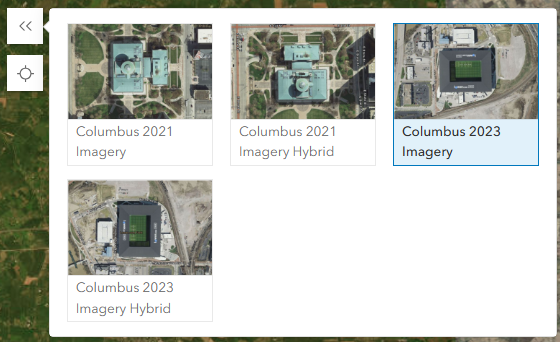
Basemap Selector
|
|
Click the Basemaps icon to view a gallery of basemap options. Click the desired basemap to change the map displayed. Finally, click the double-left arrows.png) icon to exit. icon to exit.
|
|

|
Find my Location
|
|
Click the Find my Location icon for the map to zoom to your location. You may need to grant the application access to your current location.
Learn more below: Find My Location
|
|

|
Search for Address
|
|
Start typing an address in the search bar, then click on your desired result in the list of suggestions. The map will zoom to the location selected.
Learn more below: Search for Address
|
A. Zoom In and Out
1.Select the Zoom In (+) button to increase the scale of the map by a set amount based on the basemap.
2.Select the Zoom Out (-) button to decrease the scale of the map by a set amount based on the basemap. In this illustration, the map is zoomed out.
.png)
3.You can also scroll the mouse wheel to increase and decrease the map scale.
4.Finally, you can use keyboard short-cuts to zoom in and out.
•Zoom In: Hold down the Shift key, then click on the map and draw a box. This generates a new map extent. The map will pan and zoom to the new map extent while the contents of the map are redrawn. NOTE: A smaller box zooms in more than a larger box.
•Zoom Out: Hold down the Ctrl-Shift keys, then click on the map and draw a box. This generates a new map extent. The map will pan and zoom to the new map extent while the contents of the map are redrawn. A smaller box zooms out more than a larger box.
B. Find My Location
The Find My Location feature lets you find, track, and display the location of the device you are currently using while within Map Viewer.
1.Click the Find My Location icon.
.png)
2.The map zooms to your current location and a blue point symbol is displayed near your current location.
.png)
NOTE: The Find My Location feature uses your browser's location.
•There may be a small pop-up asking your permission to use your location. If this happens, you may need to select the Find My Location icon again after allowing the browser access to your location.
•If you are working in a hosted environment, the Find my location feature might provide the geolocation of the ISP server or VPN connection location and NOT the current location of the device.
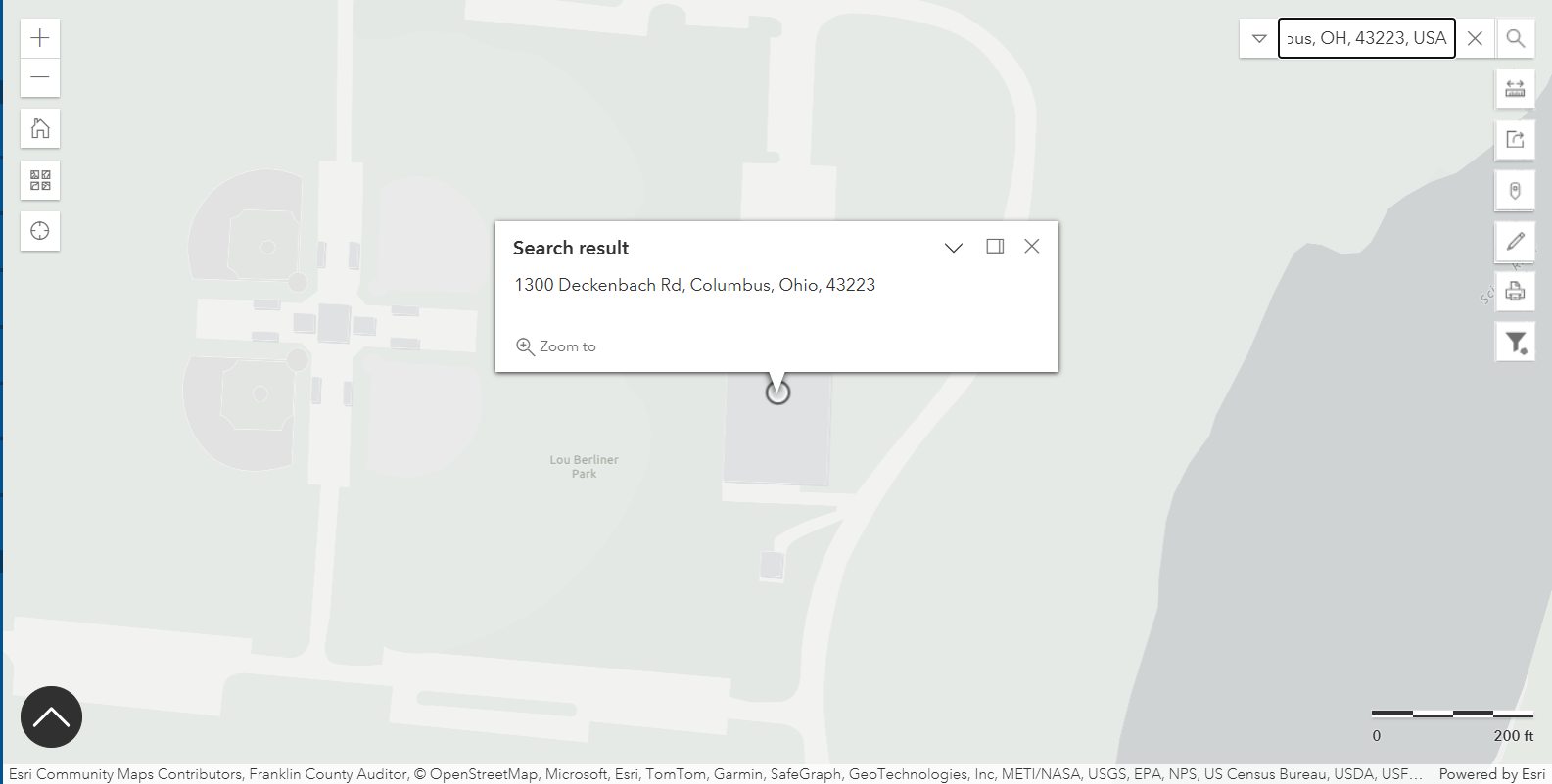
C. Search for Address
The Search field allows you to enter a partial address, select from a list of potential addresses, and then zoom to the selected location.
1.In this example, assume you entered: 300 Deckenbach Rd, Columbus, Ohio, 43223.
2.The map zooms into the Lou Berliner Sports Park at that location.
|

