AIMS Help
AIMS Help


Navigation: Mobile Help > Make a Map - Mobile >

Allow Location Access


Upon opening the Make a Map module of the AIMS application, your device will ask permission to access your location.

•If you tap Allow, the map will zoom to your current location and the Find My Location, Share My Location , Panorama View, Google StreetView, and RAS Street Viewer will all work properly.

•If you tap Don't Allow, the map will remain at the full extent of the city of Columbus and the location tools will not work properly.

•If you tap Don't Allow and then change your mind, you may refresh the page one time and the option to allow location sharing will appear again. If you then tap Don't Allow a second time, the prompt will not appear again upon refresh and the Location tools will not work.

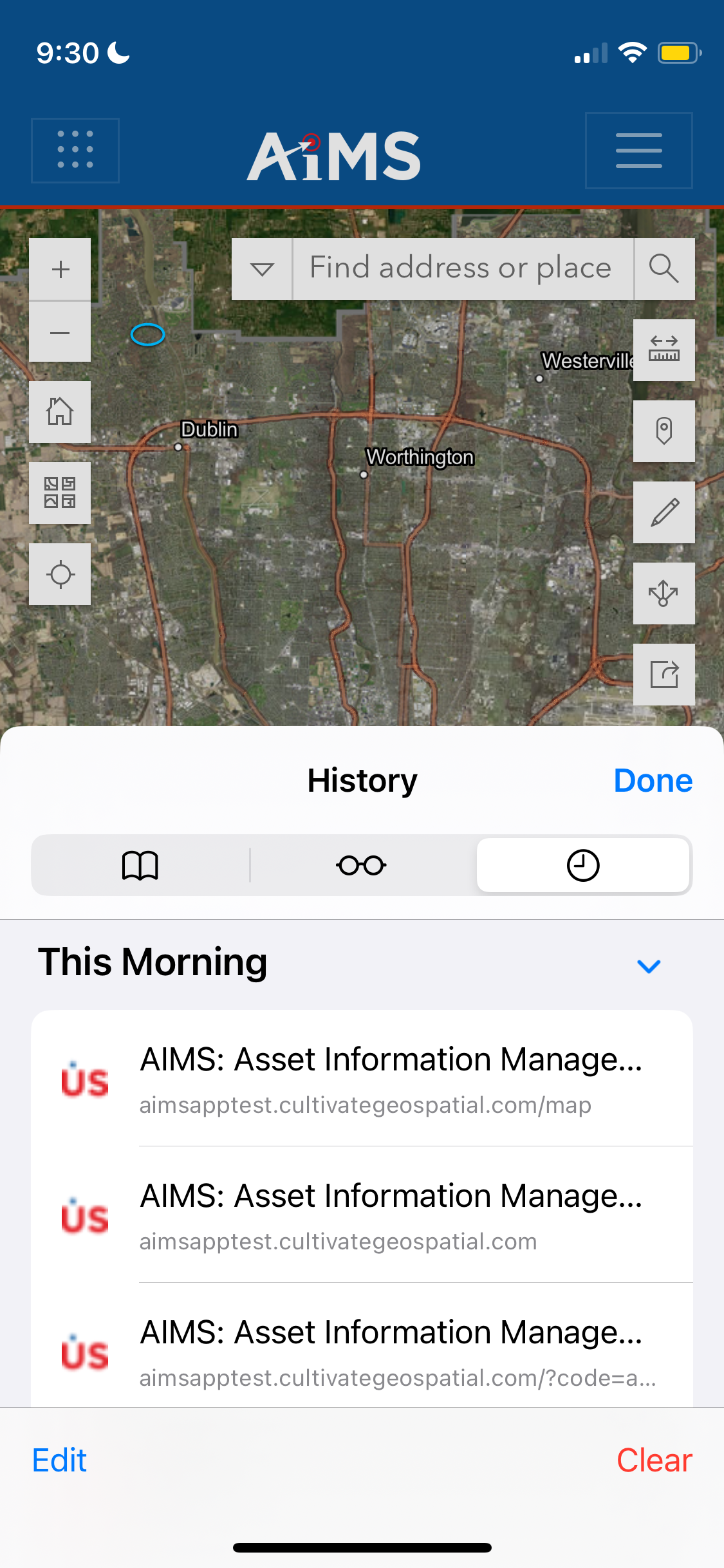
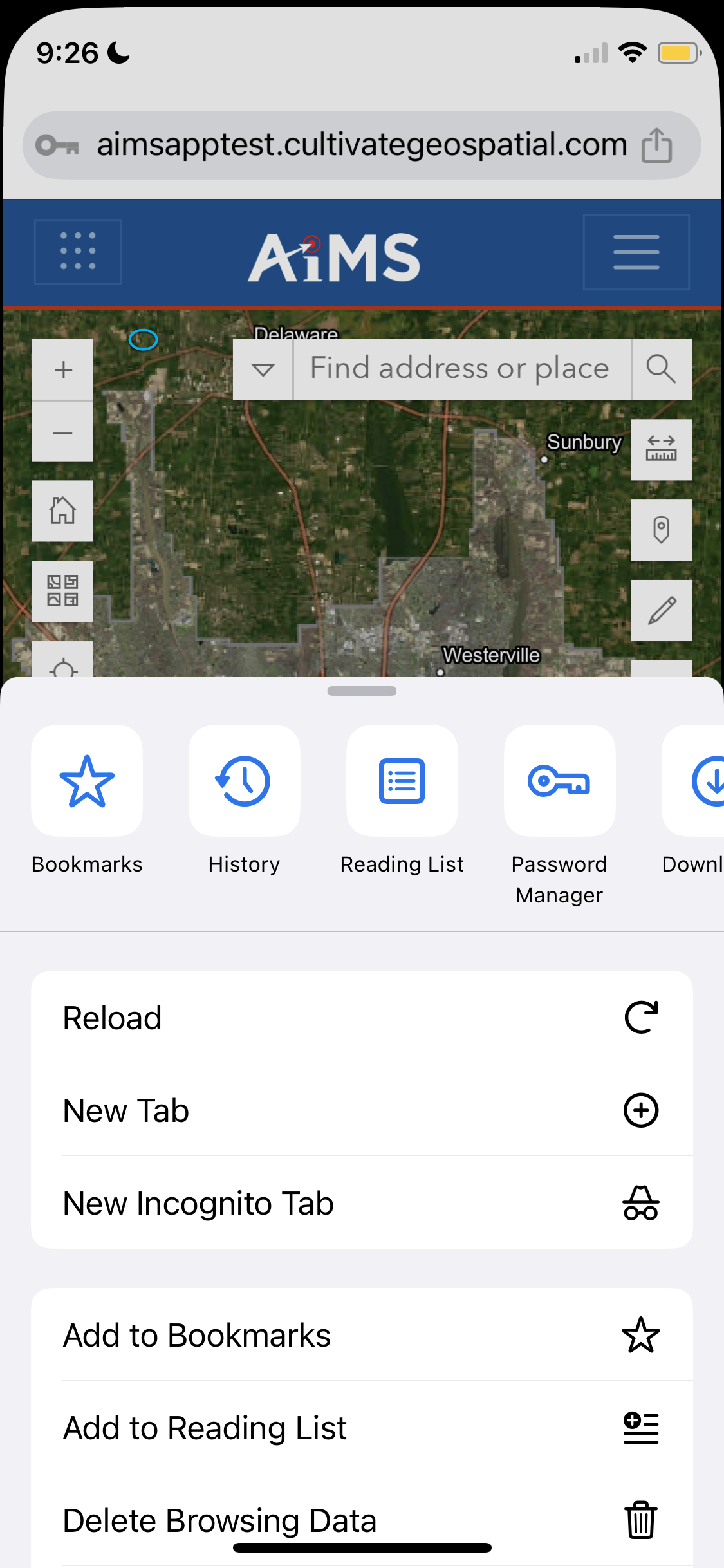
IMPORTANT! If you need to allow location after tapping Don't Allow twice, you must clear your browsing history and then revisit the AIMS application.
 

Safari                                                                                          Chrome


Copyright © 2026 Cultivate Geospatial